
Featured

28 May 2025
10 min read
Noor Kaur
How to Use TradingView on Mobile for On-the-Go Analysis
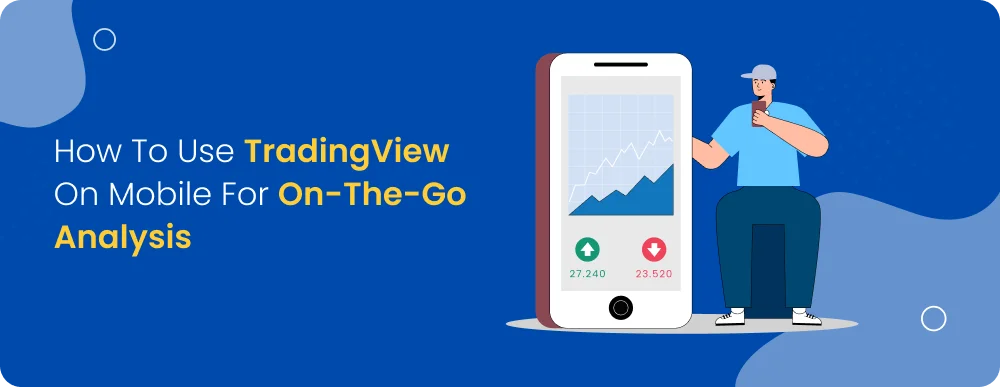
You don’t need to be stuck to a screen all day to stay on top of the markets. TradingView’s mobile app gives you control over your analysis from your pocket.
But to get value from it, you must know what tools to use and how to navigate it properly. This TradingView guide will cover customising your charts, using TradingView indicators, setting up alerts, and more.
What Is TradingView Mobile? Key Features and Functionalities
TradingView Mobile gives you access to the full power of TradingView, directly on your phone or tablet. Whether watching market movements or adjusting your charts while on the go, the mobile app brings together key tools without overwhelming you.
With the TradingView mobile app, you can track real-time price movements, view detailed charts, apply indicators, and follow market news. It supports many asset classes—including stocks, crypto, forex, and commodities—making it a solid choice no matter what you're trading.
Here are some core features you’ll find useful:
Advanced Charting
The app supports detailed charting with options to zoom, scroll, and add multiple TradingView indicators (technical tools used to analyse price movements). Whether looking at candlestick patterns or trend lines, chart interaction is smooth and responsive.
Custom Watchlists
You can set up and organise multiple watchlists to monitor different markets. You can also sync them across devices, so whatever you set on your desktop appears the same on mobile.
TradingView Paper Trading on Mobile
Paper trading (simulated trading with virtual money) is also available on the mobile app. It’s a helpful way to test your strategy without risking real money, especially if you're still building confidence.
Alerts and Notifications
Set up price alerts directly from the chart. You’ll get notified when a certain condition is met, whether a price crosses a level or a volume change.
Chart Types and Tools
The app supports several chart types—line, bar, candlestick, and Heikin Ashi (a variation that smooths out price data). You can also access drawing tools and overlays directly from the chart screen.
How to Set Up Your Account and Navigate the Mobile Interface
Getting started with TradingView Mobile trading is quick. The steps are largely the same whether you use the TradingView app for Android or iOS.
Step 1: Download and Sign In
Download the TradingView mobile app from your app store. Open the app and either sign up for a new account or log in with your existing one. A free version is available, but you can also start with a trial of the paid plans if you want access to more features.
Step 2: Familiarise Yourself with the Layout
Once logged in, the interface is fairly intuitive. The bottom menu gives you access to:
Charts: The main feature, showing your selected asset’s performance
Ideas: Community posts, trade setups, and market insights
News: Headlines from various financial sources
Profile: Your account, alerts, and settings
The top of the screen usually shows your active ticker (asset) and buttons for search, alerts, and chart tools.
Step 3: Navigate the Charts
On the chart screen, you can:
Pinch to zoom in and out
Swipe to scroll through time
Tap and hold to see prices for a specific point
Add indicators (like RSI, MACD) using the “fx” icon
Use drawing tools by tapping the pencil icon
Long-press anywhere on the chart to bring up more chart actions.
Step 4: Customise Your Setup
Use the three-dot menu to access settings. Here, you can:
Change chart types and timeframes
Edit watchlists
Manage alerts
Connect your broker account if supported
Adjust app appearance and notification settings
This part of the app makes it easier to tailor your setup based on how you trade.
Top Reasons to Use TradingView on Your Mobile Device
The TradingView mobile app gives you access to most of the tools available on the web while adding flexibility and ease of access on the go.
Here’s why it makes sense to use TradingView mobile trading:
Real-Time Market Access: You get live price updates across markets—stocks, crypto, forex, and commodities. The app supports real-time alerts, so you can act quickly when the price hits your target or a condition is met.
Portability: The mobile app allows you to check charts, modify alerts, and track markets from anywhere. This is especially useful when you're not at your desk but don’t want to miss key movements.
Consistent Experience Across Devices: Your watchlists, chart layouts, and alerts automatically sync between the mobile app and desktop. Any changes you make on one device reflect instantly on the other.
Easy Access to Indicators: You can apply multiple TradingView indicators on mobile, just like on desktop. Whether you use MACD, RSI, or Bollinger Bands, you can add and customise them easily in a few taps.
Access to Community and Learning Tools: The mobile app lets you view published ideas, read through analysis, and explore educational posts. This is helpful when you're still learning or want a second opinion before placing a trade.
How to Link Your Broker Account to TradingView Mobile
If the platform supports connecting your broker account to trade directly through TradingView mobile, you can place real trades from within the app without switching between different platforms.
Step 1: Go to the Settings Menu
Once logged into the TradingView app for Android or iOS, tap on the profile icon at the bottom and go to Settings.
Step 2: Select 'Brokers'
Scroll down and tap on Brokers. This shows you a list of brokers that are supported by mobile trading. Common options include Optimus Futures, TradeStation, and others.
Step 3: Choose Your Broker and Sign In
Tap your broker’s name and follow the login prompts. You’ll usually need your username and password. Some brokers may also require an API key (a secure code used to connect apps to your trading account).
Step 4: Complete Any Additional Steps
Depending on your broker, you may be asked to complete identity verification or grant permission for the app to access your trading data.
Once connected, you can execute trades from your mobile chart, view your account balance, and manage open positions.
Expert Tips to Get the Most Out of TradingView Mobile
Once you're comfortable with the basics, you can do quite a bit to customise and speed up your TradingView mobile trading experience. Here are a few practical tips to help you make the most of the app:
Create Custom Watchlists: Group stocks, forex pairs, or crypto tokens by theme, sector, or strategy. You can switch between them quickly, which is helpful if you track multiple markets.
Use Fewer but Relevant Indicators: Overloading your chart with too many TradingView indicators can slow you down. Stick to the few that match your trading style—for example, moving averages with RSI for trend-based strategies.
Set Precise Alerts: Use the alert feature for price levels and conditions like crossing indicators (e.g. MACD cross). This lets you step away from the screen while still staying in control.
Sync With Desktop for Pre-Market Planning: Use your desktop to plan your trades, mark levels, track execution or make updates on mobile. This keeps your charts clean and your workflow simple.
Use Drawing Tools With Two Fingers: Long-press and use two fingers to move or adjust trendlines, zones, or annotations more accurately. It takes a few tries to get used to, but it saves time in the long run.
Bookmark Useful Community Ideas: If you're new to a particular market or strategy, follow traders who publish regularly and bookmark useful content. You can revisit these ideas even when you’re offline.
Final Thoughts: Should You Use TradingView on Mobile?
If you’re actively tracking charts, setting alerts, or checking positions while on the move, the TradingView mobile app is worth using. It carries over the key functions from desktop—charts, alerts, indicators, and even paper trading—into a format that’s clean, reliable, and easy to use.
It’s not a complete replacement for the desktop version, especially if you’re doing deep analysis or running multiple charts side by side. But for regular tracking, quick trade setups, or reviewing your strategy during breaks, the mobile version does a solid job.
FAQS
Can I use TradingView Mobile for real-time trading analysis?
TradingView Mobile supports real-time market data and lets you analyse charts with technical indicators, drawing tools, and live updates.
Is TradingView Mobile free to use?
The app is free to download and use, but has limited features. Paid plans are available to access more indicators, real-time data from additional exchanges, and other advanced tools.
Can I view multiple charts on TradingView Mobile?
You can view one chart at a time on the mobile app. Multi-chart view is only available on the desktop with a Pro+ or Premium plan.
How secure is my data on TradingView Mobile?
Your data is encrypted and synced across devices securely. Always use strong passwords to keep your account safe and avoid logging in on shared devices.
How do I set up price alerts on TradingView Mobile?
Tap the asset chart, choose the price level, and select “Create Alert.” You can customise conditions like crossing, moving above/below, or based on indicators.
How do I view historical data on TradingView Mobile?
To access historical price data, simply zoom out or scroll left on the chart. The amount of data available depends on the asset and your subscription plan.
Share on:


RelatedBlogs

12 Oct 2026
Featured
Read MoreHow PMS Portfolios Are Benchmarked and What "Alpha" Really Means for Investors
Confused about how PMS portfolios are benchmarked and what alpha actually means? Here's a plain-English breakdown before you invest.
22 Aug 2026
Featured
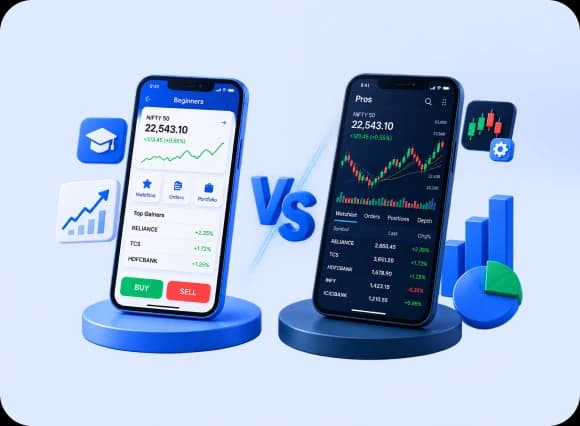
Read MoreTrading App Comparison: What Beginners vs Pros Should Look For
Choosing a trading app? See what beginners and pros should check in a trading platform, from charts to order speed, before you start trading.

22 Aug 2026
Featured
Read MoreContango vs Backwardation in Commodity Futures Explained
Understand contango and backwardation in commodity futures, what drives them, and how traders use these signals to plan smarter trades.

30 Jul 2026
Featured
Read MoreHow Portfolio Managers Select Stocks: A Behind-the-Scenes Look at PMS Investing
Curious how experts invest in PMS? See how portfolio managers pick, weigh, and rebalance a stock portfolio behind the scenes.
Subscribe for Newsletter
Share on:
Open a Free Demat Account with us only in few minutes
By processing, you agree terms & conditions.

Trending Blogs
Tags
Archive
Open a Demat Account in 5 minutes !

Step 01
Click on the button below to open your new account.

Step 02
Fill out some basic details to get started.

Step 03
Upload your documents to verify your account.

Step 04
Start trading within just 24 hours of registration.
Commonly Asked Questions
It is simple and paperless. Visit our website, enter your mobile number, and complete the e-KYC process to open a demat account instantly. Our digital onboarding ensures you can start investing in minutes without physical paperwork.
We unify speed, stability, and advanced tools in one place. Unlike basic apps, our ecosystem offers deep analytics, algo capabilities, and expert support, making us the preferred platform for trading for both beginners and professionals.
A demat account acts like digital storage for your shares and securities, while a trading account is the interface used to buy and sell them. At mastertrust, you get both linked seamlessly for a smooth investment experience.
With over 41+ years of market presence, we combine trust with modern technology. Our transparent pricing, personalised guidance, and regulatory compliance make us one of the preferred stock brokers in India for secure wealth creation.

Slide 1 of 1